
 Mainframe Tutorial
 JCL Tutorial
 Introduction
 Mainframe Interview Q&A
 Mainframe Quiz
 Mainframe Memes
 Contact us
 About us
Module 1: QMF Introduction
 Backward

QMF- Introduction
QMF (Query Management Facility) is IBM's interactive query and reporting tool for Db2 on z/OS. It lets you write SQL, run it, format the results into a readable report, save the work, and automate it — all from simple 3270 panels, without writing a program.
What QMF is
- QMF is an IBM licensed program product that sits on top of Db2 on z/OS (it also exists for other platforms, but this tutorial covers z/OS).
- It is a query tool, a report writer, and a small automation engine in one: you write SQL, see the answer rows, format them with a form, print them, or save them as a table.
- Everything you build in QMF — queries, forms, procedures — is stored as rows in Db2 tables in the QMF catalog, so objects are shared, secured, and backed up like any Db2 data.
- Typical users: business analysts who need ad-hoc answers, developers testing SQL before embedding it in programs, and operations staff running daily/weekly reports.
How QMF fits with Db2
- You must have a valid Db2 authorization ID and the needed SELECT/INSERT privileges; QMF does not bypass Db2 security — every query runs under your ID.
- QMF talks to Db2 through SQL just like any application, so the SQL you test in QMF behaves the same when moved into COBOL or PL/I programs.
- QMF ships with sample tables Q.STAFF and Q.ORG, which the examples in this tutorial use — most shops leave them installed for training.
- A QMF administrator can set governor limits (resource limits) that cap how many rows or how much time a query may use, protecting the system from runaway queries.
Starting QMF
- From any ISPF command line, type QMF and press Enter (the exact command name is set by your installation; some shops use a different name).
- From the TSO READY prompt you can also type QMF to start an interactive session.
- QMF can also run in batch mode under IKJEFT01 for scheduled reports — covered in Module 4.
- When QMF starts it connects to Db2 under your TSO user ID and shows the QMF home panel.
The QMF home panel
- The home panel is your starting point: it shows your saved objects grouped by type and gives you a command line for QMF commands.
- The object types shown are QUERY, DATA (saved tables), FORM, PROC, PROFILE, and ADM (administration, only if you are authorized).
- Typing LIST ALL on the command line shows every object you own; LIST QUERIES, LIST TABLES, LIST FORMS, and LIST PROCS narrow it to one type.
- From the home panel you can type a new SQL query directly, or DISPLAY an existing object to edit it.
The QMF panels you will use most
- SQL QUERY panel — where you type or edit SQL (or build a prompted query).
- REPORT panel — where query results are displayed after RUN QUERY.
- FORM panels — FORM.MAIN and friends, where you control headings, column widths, breaks, and totals.
- PROC panel — where you write a procedure: a saved list of QMF commands that run in order.
- PROFILE panel — your personal settings: PF keys, default printer, decimal format, and similar.
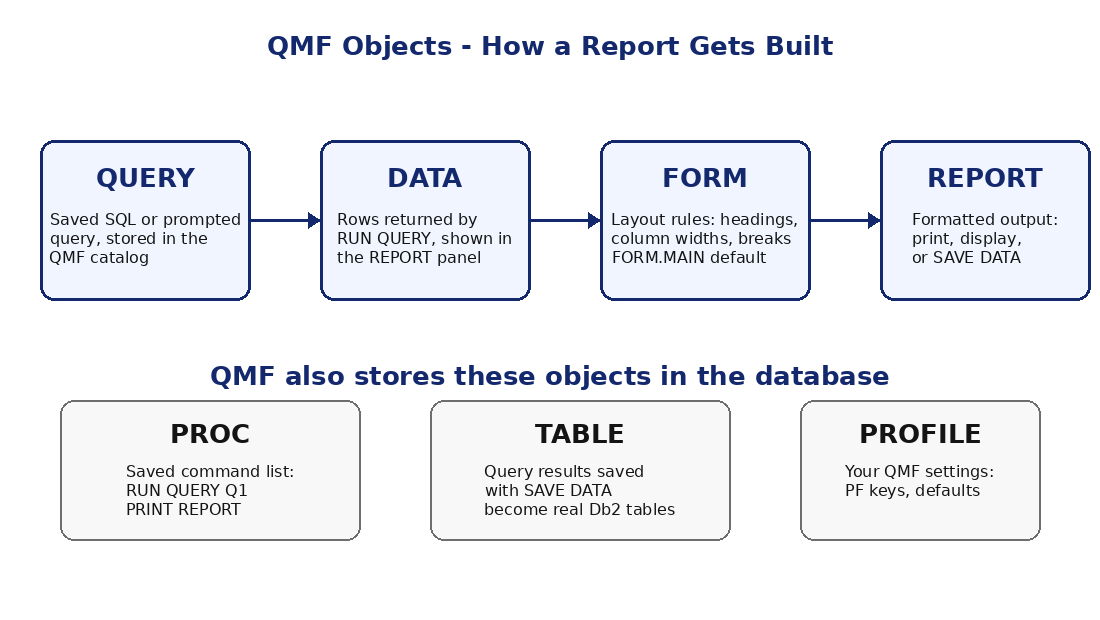
The four QMF objects
- Query — a saved SQL statement (or prompted query). Example: a query named Q1 that selects staff earning over 20000.
- Data — the rows a query returns, optionally saved permanently as a Db2 table with SAVE DATA.
- Form — the layout rules applied to the data: column headings, widths, edit codes, page headings, breaks, totals. FORM.MAIN is the default form QMF applies.
- Proc — a saved sequence of QMF commands, for example RUN QUERY, PRINT REPORT, SAVE DATA — QMF's way of automating a job.
A first taste: commands you will learn
RUN QUERY Q1
SAVE QUERY AS Q1
DISPLAY FORM
PRINT REPORT
SAVE DATA AS MYTABLE
RUN PROC NIGHTLY
- RUN QUERY runs a query and shows the REPORT panel with the answer rows.
- SAVE QUERY stores your SQL in the database so you can reuse it.
- PRINT REPORT sends the formatted report to a printer or data set.
- SAVE DATA turns the answer rows into a real Db2 table.
- RUN PROC executes a saved procedure — the building block of scheduled reporting.